

In this blog, I will show you How to Create a Dynamic Page Title with Multiple Slicers.
Here’s a step-by-step guide on how to achieve this.
Step 1: Import your data into Power BI and create a report page.Step 2: Add the slicers to your report page.
Step 2: Add the slicers to your report page.
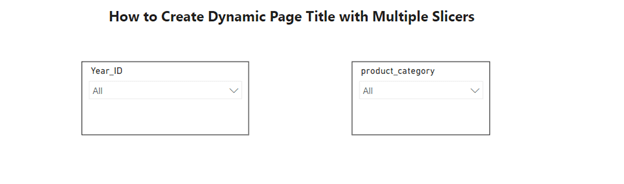
Go to the “Visualizations” pane on the right-hand side. Drag the desired fields that you want to use as slicers into the “Slicers” section.
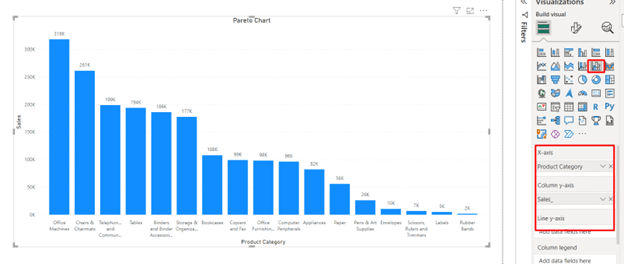
Step 3: Create a text box for the dynamic page title.
Go to the “Home” tab on the top menu.
Click on the “Text box” button to insert a text box on your report page. Position the text box where you want your dynamic title to appear.
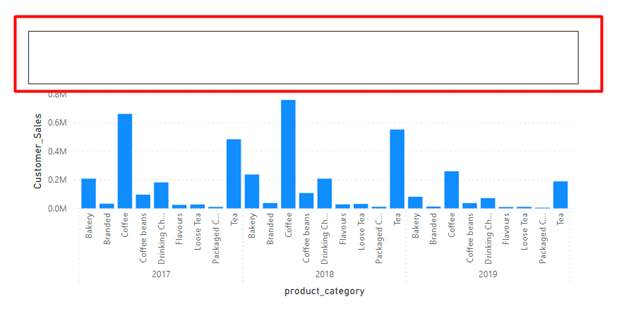
Step 4: Write the DAX expression for the dynamic page title.
Dynamic title =
SELECTEDVALUE(
‘Calendar'[Year_ID],”All Years”)
& ” Sales for the ” &
SELECTEDVALUE(
‘Product Lookup (Updated)'[product_category],
“All Category”)
Click on the text box you just created to select it. In the “Text Box“, click on the “+Value” button > search the measure name > click on the Save Button
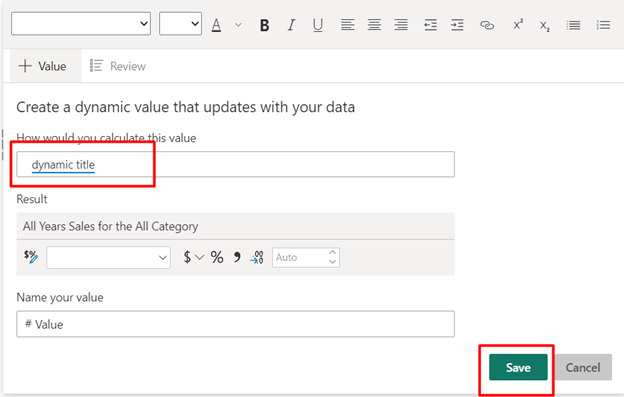
Step 5: Apply formatting.
You can format the text box as per your design preference, such as changing the font, size, etc.
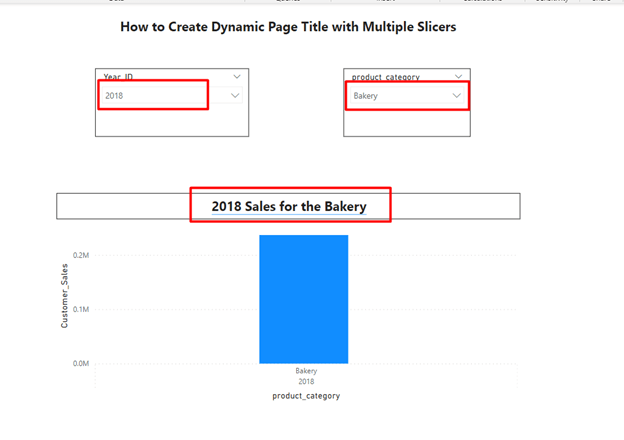
Step 6: Test the dynamic title. When you interact with the slicers on the report page, the title in the text box should automatically update based on the slicer selections.
Rahul Prajapati
Data Analyst
Author By

Rajeshwari Sharma
Rajeshwari is an experienced data professional with a track record of using data-driven insights to improve business performance. She has successfully managed multiple projects, utilising her expertise in data analysis and database administration. As a Microsoft-certified Data Analyst and Azure Database Administrator, she has cultivated a deep understanding of data management best practices and advanced analytics techniques. Her MBA in Business Analytics has equipped her with a solid foundation for integrating business strategy with data insights.