
Introduction
In today’s data-driven world, businesses rely heavily on real-time insights to make informed decisions. Business Central is a widely used ERP system that stores critical data related to finance, sales, inventory, and operations. However, to truly unlock the value of this data, organizations use Power BI for visualization and analytics.
Microsoft provides multiple ways to connect Business Central with Power BI, allowing flexibility based on business needs, data volume, and system architecture. This blog explains when and how to use different integration approaches practically.
What Does Connecting Business Central with Power BI Mean?
Connecting Business Central with Power BI means extracting ERP data and transforming it into interactive reports and dashboards. Power BI can access Business Central data through connectors, APIs, or intermediate layers like Excel or Dataverse.
Example:
A finance team uses Business Central for accounting. By connecting it to Power BI, they can create dashboards showing:
- Monthly revenue trends
- Outstanding invoices
- Region-wise sales performance
Ways to Connect Business Central with Power BI
1. Built-in Business Central Connector
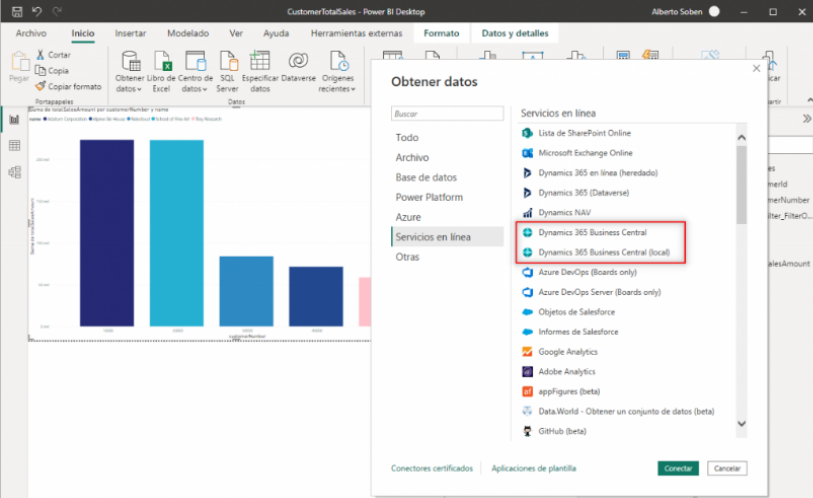
This is the most straightforward and recommended approach.
- Power BI provides a native connector for Business Central
- Users sign in using Business Central credentials
- Standard APIs are automatically loaded
Best for:
This approach works really well if you are using Business Central Online and want a quick, secure way to start building reports in Power BI without much setup.
2. OData Feed (Web Services)
Step 1: Open Power BI Desktop
Step 2: Select OData Feed Connector
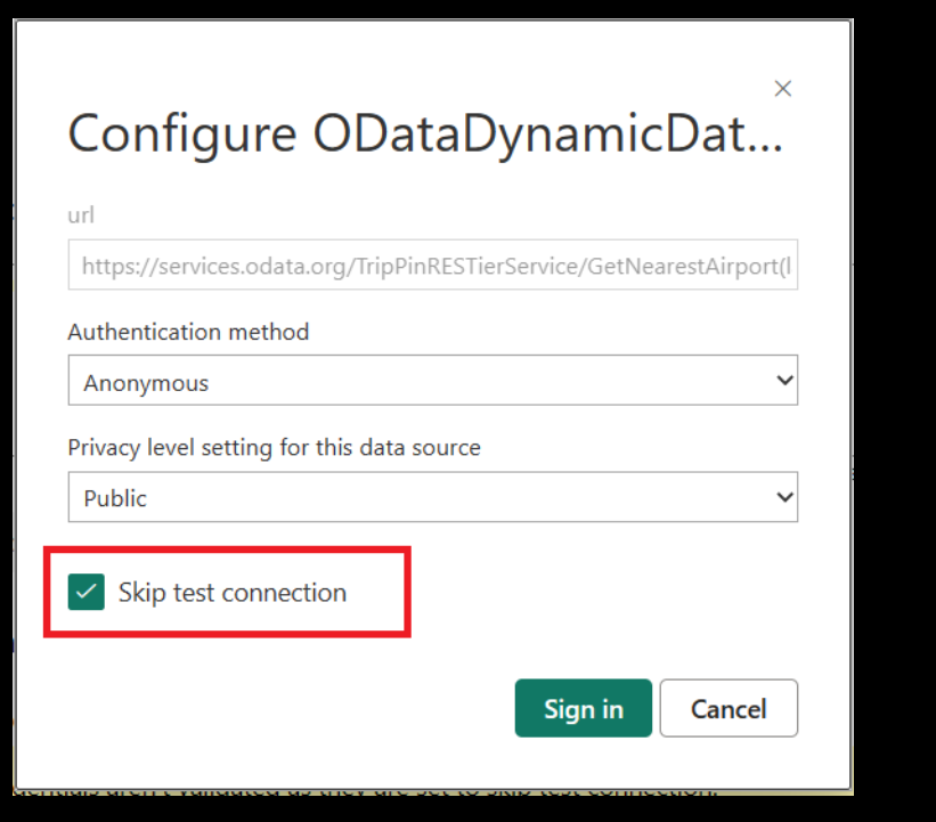
Step 3: Enter OData URL
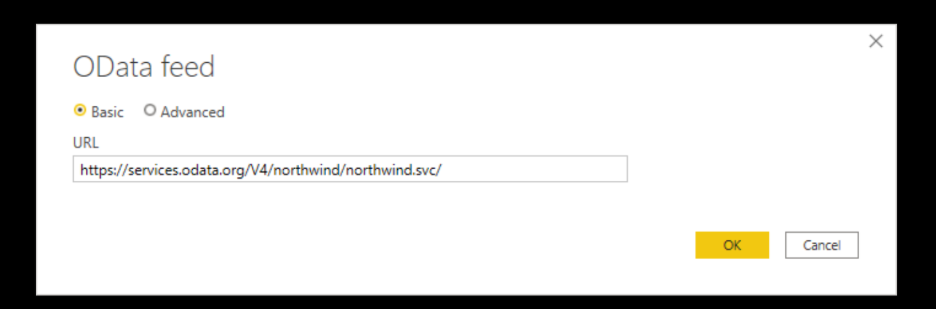
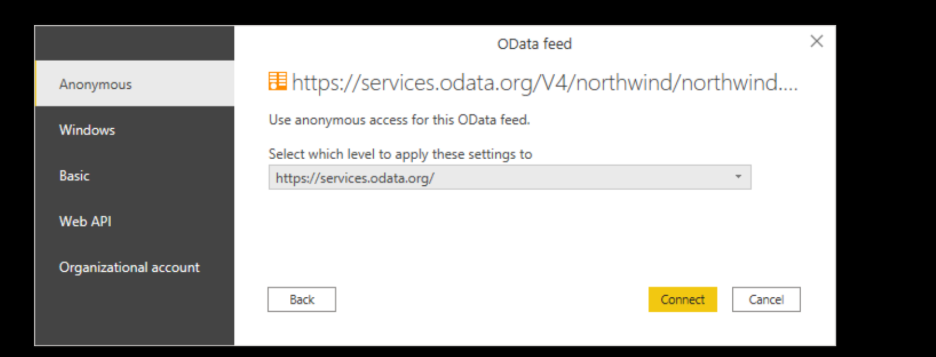
Business Central exposes data via OData endpoints that Power BI can consume.
- Pages or Queries are published as Web Services
- OData URLs are used in Power BI
- Works for both Online and On-Premises deployments
Best for:
This option is useful when you need more control over the data, such as working with specific tables or pages, or when Business Central is hosted on-premises.
3. Dataverse
Step 1: Open Power BI Desktop
Step 2: Click on Get Data
Step 3: Search and Select Dataverse
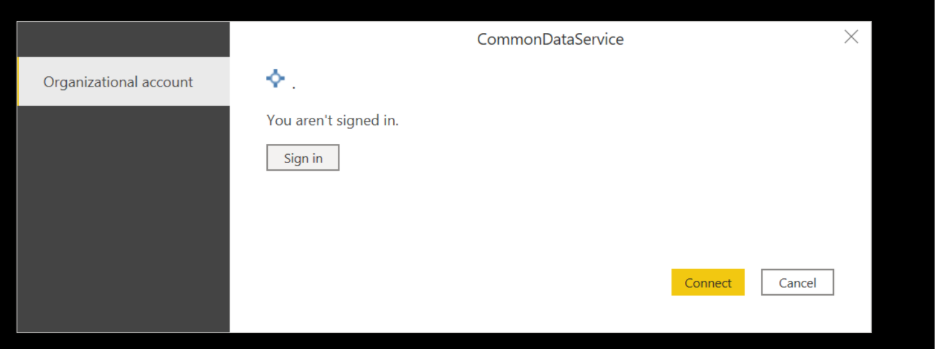
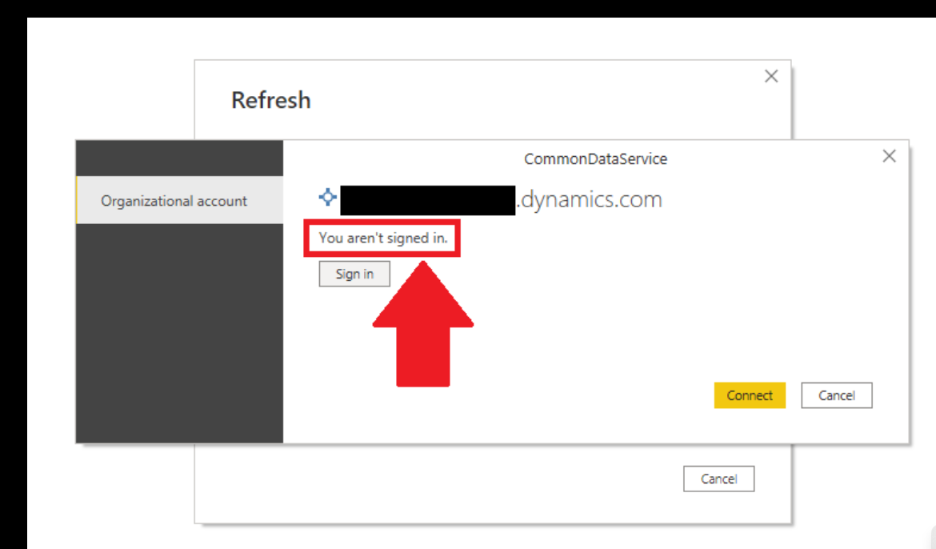
This is an enterprise-level integration method.
- Business Central data is synced to Dataverse or Azure Data Lake
- Power BI reads data from a centralized storage layer
- Suitable for large datasets and advanced analytics
Best for:
This method is generally chosen by larger organizations that deal with high data volumes and require scalable, enterprise-level reporting solutions.
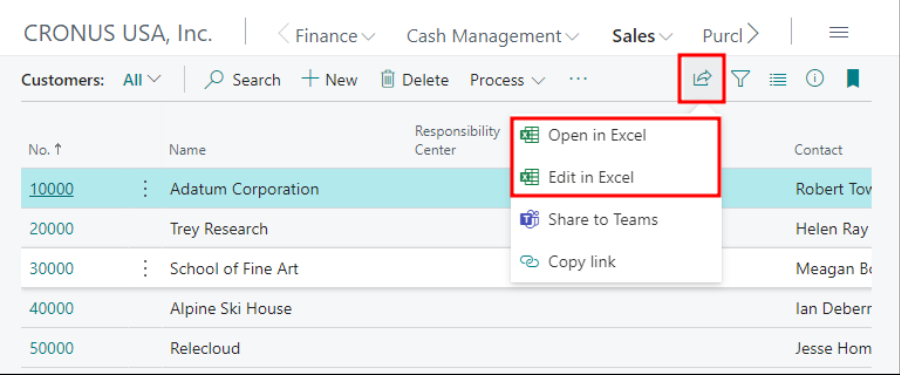
4. Excel Export / Edit in Excel
A simple and commonly used manual method.
- Data is exported from Business Central to Excel
- Power BI connects to the Excel file
Best for:
This approach is commonly used for quick, one-time analysis or when working with smaller datasets that do not require automated refresh.
Best Practices
- Choose the connector based on data size and performance needs
- Avoid heavy queries when using OData
- Use Dataflows for centralized logic
- Prefer Dataverse or Azure Data Lake for scalable solutions
- Test refresh and performance before production deployment
Author By

Rajeshwari Sharma
Rajeshwari is an experienced data professional with a track record of using data-driven insights to improve business performance. She has successfully managed multiple projects, utilising her expertise in data analysis and database administration. As a Microsoft-certified Data Analyst and Azure Database Administrator, she has cultivated a deep understanding of data management best practices and advanced analytics techniques. Her MBA in Business Analytics has equipped her with a solid foundation for integrating business strategy with data insights.