
Power Query Date Table That Works Like CALENDARAUTO — Fully Automated Using Fact Table Dates
Most Power BI developers know about CALENDARAUTO() in DAX.
It automatically scans the entire model and generates a date table based on the minimum and maximum date values. Super convenient.
But what if you want the same automation inside Power Query?
A date table that adjusts automatically when new data loads — without maintaining fixed parameters or editing M code?
Yes, it’s absolutely possible.
In this blog, I’ll show how to create a fully dynamic Date Table in Power Query using the Min and Max dates of your Fact table, similar to how CALENDARAUTO works.
Why Do This in Power Query Instead of DAX CALANDARAUTO?
A few important reasons:
- You want your Model (semantic layer) to stay clean
- You don’t want to write DAX for date columns
- Fact table dates keep expanding and you want automation
- You want more control over fiscal calendars
- You want to use date logic before loading into the model (ETL stage)
Power Query is perfect for this.
Step 1 — Identify the Fact Table Date Column
Choose your main transaction table — Sales, GL, Payroll, Inventory, etc.
Example column:
[Date Created]
You can add a screenshot of the fact table here.
Step 2 — Get Min & Max Dates Automatically
Power Query has two beautiful functions:
- List.Min()
- List.Max()
These let you extract the earliest and latest dates from a column.
We also wrap them inside:
- Date.StartOfMonth()
- Date.EndOfMonth()
to clean the boundaries — same as CALENDARAUTO.
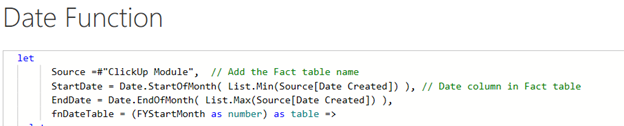
M Code
let
Source =#”ClickUp Module”, // Add the Fact table name
StartDate = Date.StartOfMonth( List.Min(Source[Date Created]) ), // Date column in Fact table
EndDate = Date.EndOfMonth( List.Max(Source[Date Created]) ),
fnDateTable = (FYStartMonth as number) as table =>
Final M Code (Copy–Paste Ready) for Date table
let
DayCount = Duration.Days(Duration.From(EndDate – StartDate)),
Source = List.Dates(StartDate,DayCount,#duration(1,0,0,0)),
TableFromList = Table.FromList(Source, Splitter.SplitByNothing()),
ChangedType = Table.TransformColumnTypes(TableFromList,{{“Column1”, type date}}),
RenamedColumns = Table.RenameColumns(ChangedType,{{“Column1”, “Date”}}),
InsertYear = Table.AddColumn(RenamedColumns, “Year”, each Date.Year([Date]),type text),
InsertYearNumber = Table.AddColumn(RenamedColumns, “YearNumber”, each Date.Year([Date])),
InsertQuarter = Table.AddColumn(InsertYear, “QuarterOfYear”, each Date.QuarterOfYear([Date])),
InsertMonth = Table.AddColumn(InsertQuarter, “MonthOfYear”, each Date.Month([Date]), type text),
InsertDay = Table.AddColumn(InsertMonth, “DayOfMonth”, each Date.Day([Date])),
InsertDayInt = Table.AddColumn(InsertDay, “DateInt”, each [Year] * 10000 + [MonthOfYear] * 100 + [DayOfMonth]),
InsertMonthName = Table.AddColumn(InsertDayInt, “MonthName”, each Date.ToText([Date], “MMMM”), type text),
InsertCalendarMonth = Table.AddColumn(InsertMonthName, “MonthInCalendar”, each (try(Text.Range([MonthName],0,3)) otherwise [MonthName]) & ” ” & Number.ToText([Year])),
InsertCalendarQtr = Table.AddColumn(InsertCalendarMonth, “QuarterInCalendar”, each “Q” & Number.ToText([QuarterOfYear]) & ” ” & Number.ToText([Year])),
InsertDayWeek = Table.AddColumn(InsertCalendarQtr, “DayInWeek”, each Date.DayOfWeek([Date])),
InsertDayName = Table.AddColumn(InsertDayWeek, “DayOfWeekName”, each Date.ToText([Date], “dddd”), type text),
InsertWeekEnding = Table.AddColumn(InsertDayName, “WeekEnding”, each Date.EndOfWeek([Date]), type date),
InsertWeekNumber= Table.AddColumn(InsertWeekEnding, “Week Number”, each Date.WeekOfYear([Date])),
InsertMonthnYear = Table.AddColumn(InsertWeekNumber,”MonthnYear”, each [Year] * 10000 + [MonthOfYear] * 100),
InsertQuarternYear = Table.AddColumn(InsertMonthnYear,”QuarternYear”, each [Year] * 10000 + [QuarterOfYear] * 100),
ChangedType1 = Table.TransformColumnTypes(InsertQuarternYear,{{“QuarternYear”, Int64.Type},{“Week Number”, Int64.Type},{“Year”, type text},{“MonthnYear”, Int64.Type}, {“DateInt”, Int64.Type}, {“DayOfMonth”, Int64.Type}, {“MonthOfYear”, Int64.Type}, {“QuarterOfYear”, Int64.Type}, {“MonthInCalendar”, type text}, {“QuarterInCalendar”, type text}, {“DayInWeek”, Int64.Type}}),
InsertShortYear = Table.AddColumn(ChangedType1, “ShortYear”, each Text.End(Text.From([Year]), 2), type text),
AddFY = Table.AddColumn(InsertShortYear, “FY”, each “FY”&(if [MonthOfYear]>=FYStartMonth then Text.From(Number.From([ShortYear])+1) else [ShortYear]))
in
AddFY
In
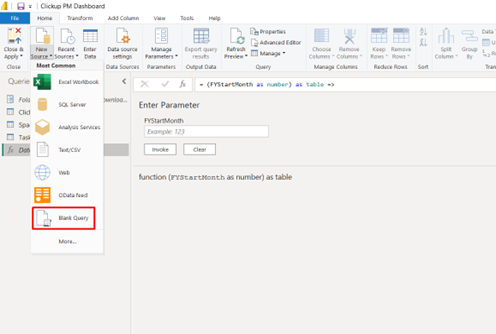
Step 3 – Put this M code in Blank Query
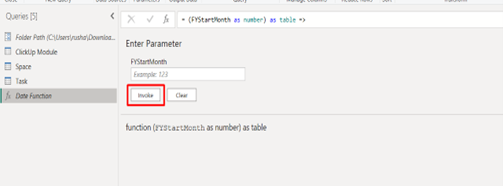
Step 4 – After invoking the Date Function with FYStartMonth you will get a table
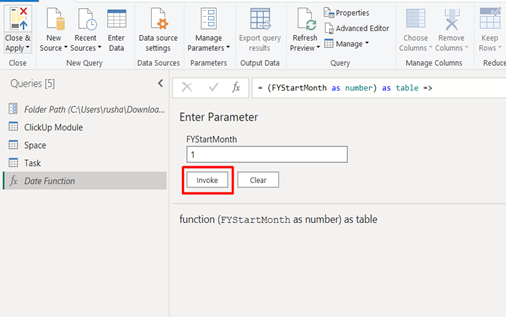
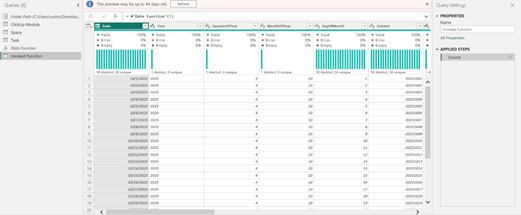
This Works Exactly Like CALENDARAUTO() — But Inside Power Query
Whenever new data loads:
- Date Created column updates
- MinDate and MaxDate recalculate
- Date table adjusts automatically
You never touch the code again.
This makes your model:
- cleaner
- faster
- fully automated
- easier to maintain
Author By

Gaurav Lakhotia
Gaurav holds an MBA in Business Analytics. As a data geek and avid learner, he has earned accolades including Microsoft Certified Data Analyst, Microsoft Certified Azure Administrator, and active Power BI Community contributor. He is also a Microsoft Certified Trainer. With critical thinking and project delivery skills, he strives to achieve customer delight in Data Analytics projects. Gaurav loves travelling with friends when he is not busy working on data.